Back to Asset Essentials Main Menu
Plan and Assign Work in Planner and Scheduler
Use Planner and Scheduler in Asset Essentials to review team workloads, assign or reschedule work orders, and balance Technician capacity. The Team Planner helps you filter Technicians by crew or shift, view assigned and unscheduled work, check capacity indicators, and confirm work order details before making scheduling changes.
Team Planner View
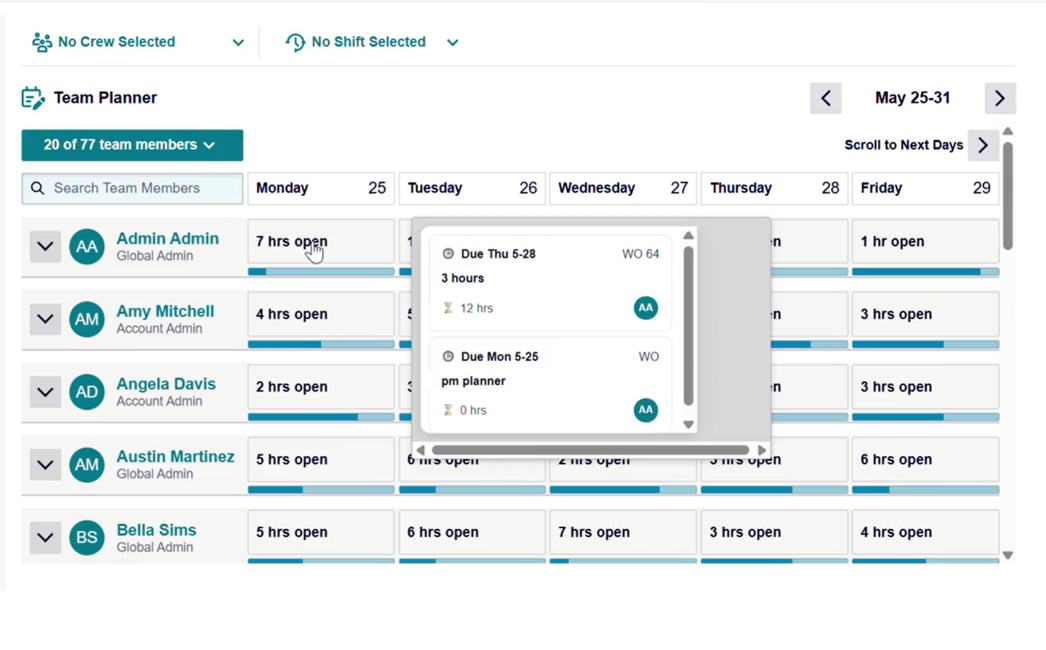
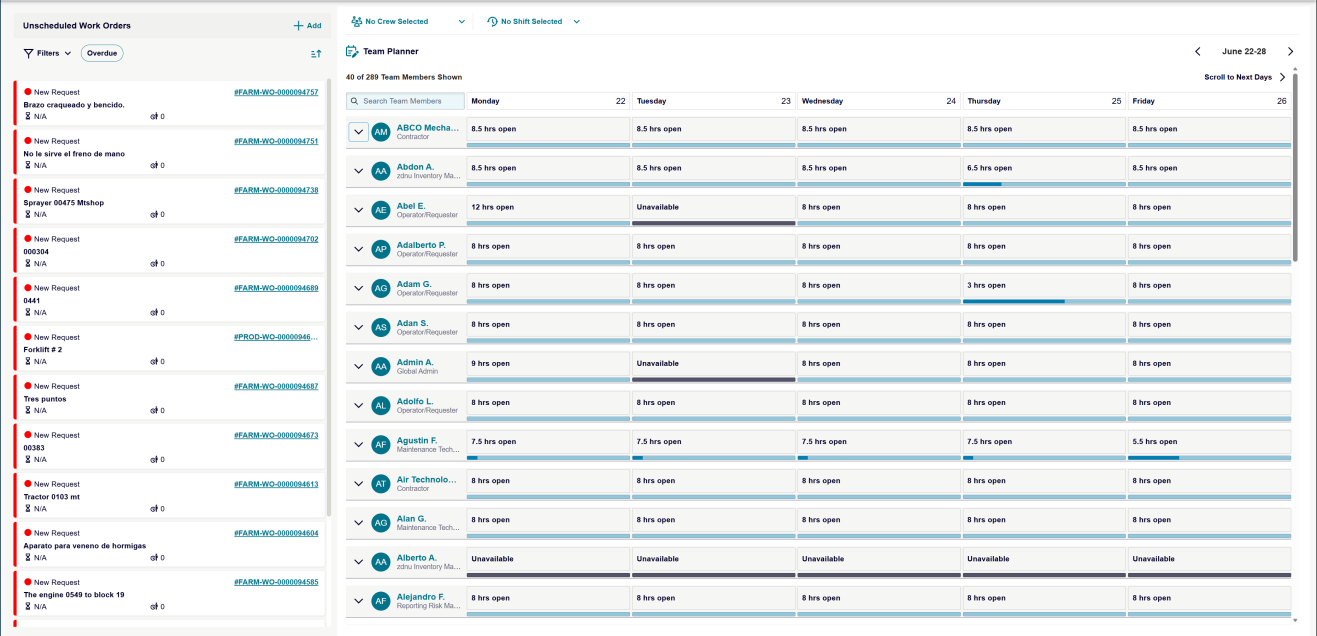
The Team Planner provides a visual schedule of team member availability, assigned work, and capacity.
Use this view to review Technician workload and identify open, full, or overbooked capacity before assigning work.
The Team Planner includes:
-
Crew and Shift filters,
-
Date navigation controls,
-
Team member search,
-
Team member rows,
-
Daily schedule columns, and
-
Availability and capacity indicators.
Capacity is shown by colors:
-
Blue: Open capacity
-
Green: At capacity
-
Red: Over capacity
View Team Schedules
Use this task to review team member availability, assigned work orders, and PMs for the selected date range.
-
Navigate to Planner and Scheduler.
-
Open the Team Planner view.
-
Apply Crew or Shift filters as needed.
-
Select the required day or week view.
-
Review each visible team member’s schedule.
-
Select the expand icon next to a team member to view assigned work orders and PMs.
-
Look for red indicators to identify overdue work orders. The planner displays each visible team member’s schedule, assigned work, availability, and capacity for the selected date range.
System Behavior
The Team Planner responds based on permissions, data availability, and system status.
-
You will only see team members you have permission to view.
-
An empty state appears if no team members are available.
-
A loading indicator appears while team members or schedules load.
-
An error message with a retry option appears if the Team Members list cannot be retrieved.
-
Keyboard and screen-reader accessibility are supported.
Filter Team Members
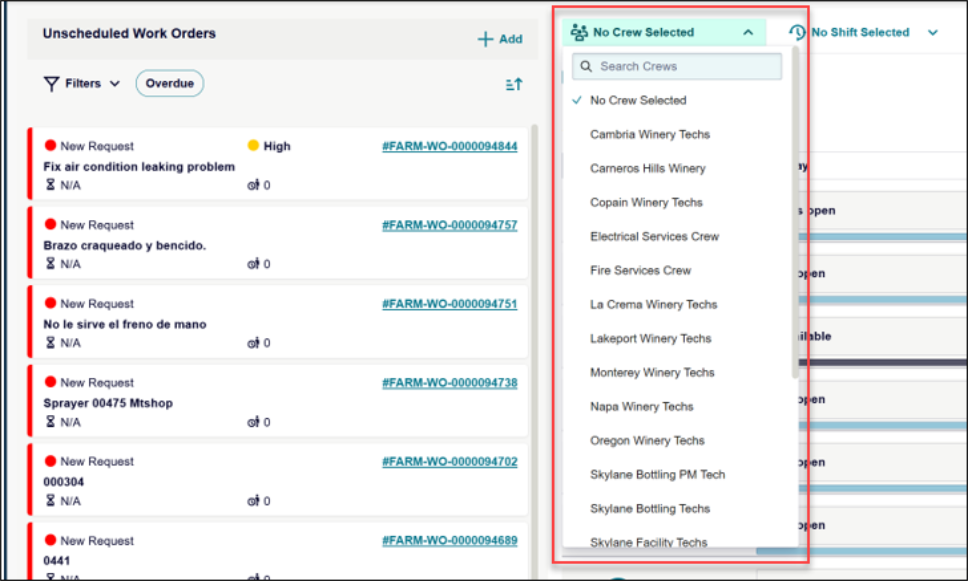
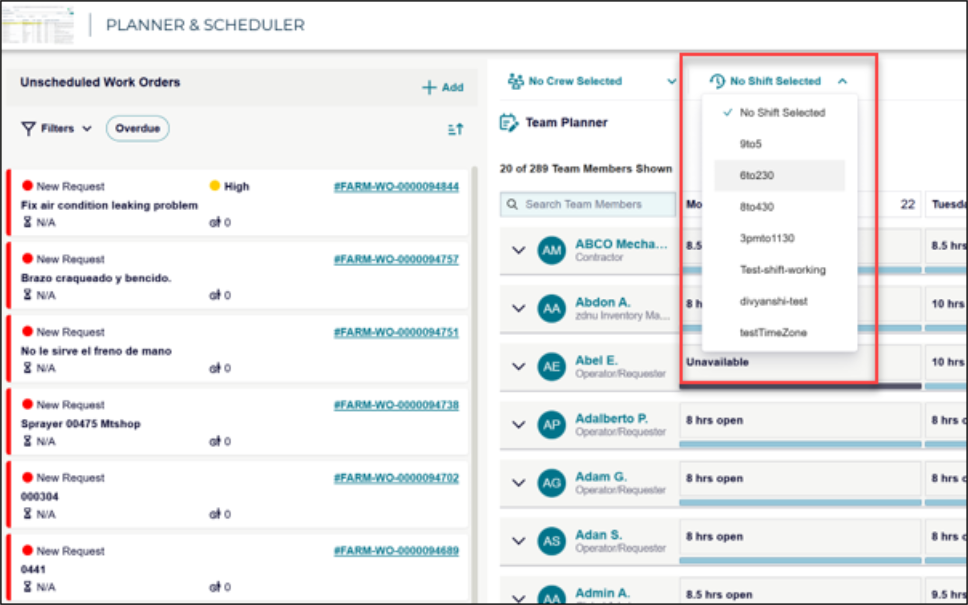
Use Crew and Shift filters to narrow the Team Members list and focus on specific Technicians.
-
Go to the Team Planner view.
-
Click the Crew filter drop-down menu (default is No Crew Selected.)
-
Select applicable Crew to view team members without a crew assignment.
-
Click the Shift filter drop-down menu (default is No Shift Selected.)
-
Select applicable Shift to view team members without a shift assignment.
-
Use the search field in either drop-down menu to find a crew or shift quickly.
Note The Team Planner displays only the team members that match the selected Crew and Shift criteria. Crew and Shift filters work independently. Clearing one filter does not clear the other.
Assign an Unscheduled Work Order
Use this task to assign an unscheduled work order to a Technician directly from the planner.
Assign an unscheduled work order:
-
In the Unscheduled Work Orders pane, select and hold a Work Order card.
-
Drag the card towards the Team Planner.
-
Drop the card next to the required Technician.
-
Review the updated Technician capacity.
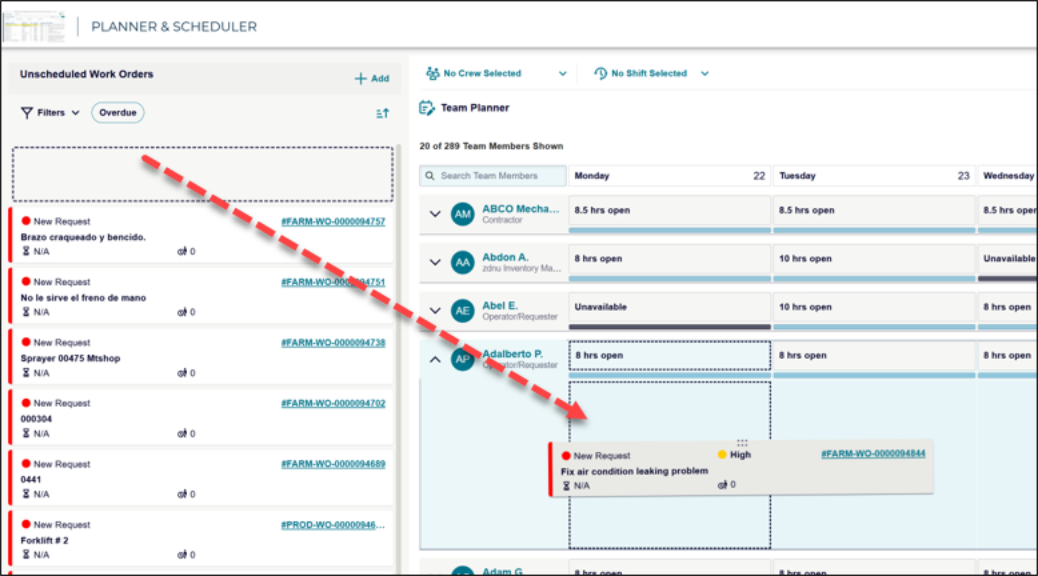
NOTE The work order will be assigned to a Technician, removed from the Unscheduled Work Orders list, and added to the planner as a compressed line item. The Technician’s remaining capacity is updated, and a confirmation message appears.
Reassign or Reschedule a Scheduled Work Order
Use this task to move scheduled non-PM work orders between Technicians or dates.
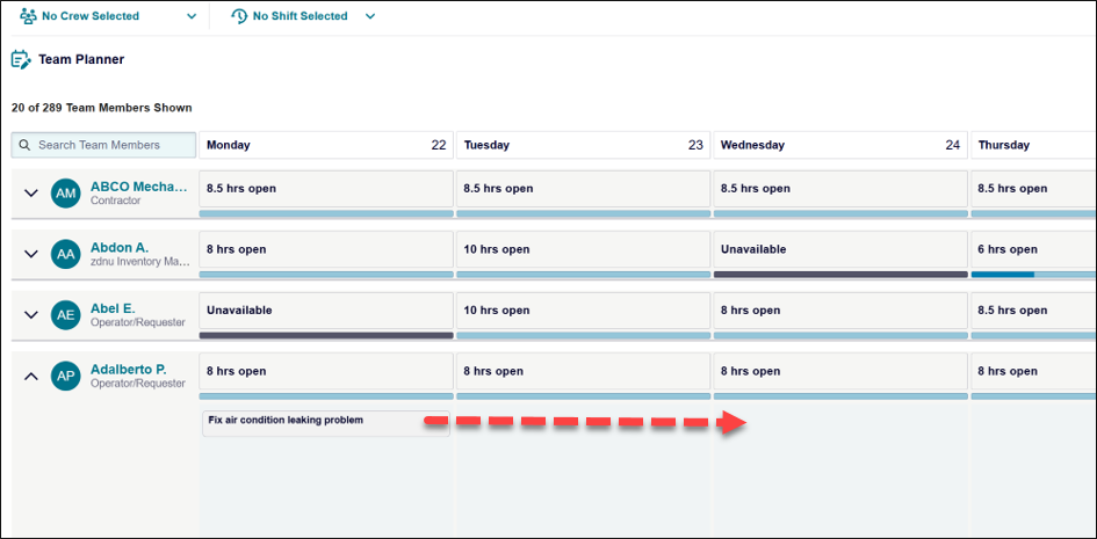
Reassign or reschedule a work order:
-
Open the Calendar section in Planner and Scheduler.
-
Locate a scheduled non-PM work order.
-
Drag the work order to another Technician on the same date to reassign it.
-
Drag the work order to another date in the current week to reschedule it.
-
Review the updated work order details and planned hours. The planner updates the assigned Technician or scheduled date. Planned hours and work order details will be refreshed automatically.


Restrictions
-
PM work orders cannot be dragged or dropped.
-
Work orders cannot be dropped beyond the next week.
-
Work orders cannot be scheduled before the assigned date.
-
Invalid drops are rejected, and the work order returns to its original position.
View Work Order Details
Use the hover card to review key information about an assigned work order without opening the full record.
-
In the Team Planner, locate a compressed work order item.
-
Hover over the work order.
-
Review the details in the hover card.
-
Move the pointer away to close the hover card. The work order details appear in a hover card, helping you confirm assignment information quickly.
-
The hover card can include:
-
Status
-
Priority
-
Work order number
-
Title
-
Description
-
Site or location
-
Allocated time
-
Assigned person
-
Add assignee option, if available